Showing posts with label Gmail. Show all posts

Saturday, November 15, 2014

Configuring Gmail for Multiple Accounts and Devices

Part I: Setting up your domain server(s) and Gmail

I’m pretty sure there is no one I know who has only one e-mail account.  This also extends to devices… other than my grandma, if you include your computer, who only has one device?

Thus, coordinating all your e-mail accounts and devices is a pretty serious necessity these days, and unfortunately, it’s not always that easy to set up… at least not so that it runs as smoothly as we’d all like.

pile_of_junk_mail_from_the_netherlandsI actually have around 25 e-mail address (I am an artist, a musician (with multiple entities), a designer, a filmmaker, a business owner, a webmaster, etc., etc.).

I also have 7 devices that I regularly use for communication (four computers, my phone, my tablet, and my bedside device (my old phone)).

Getting everything to work well together has been a crazy evolution over the years, but I’m finally getting to a point where it all works pretty seamlessly.

Back in the day, I accessed e-mail directly from my various severs using POP or IMAP (first using Eudora then Mozilla Thunderbird).  Over time, spam became an insane issue, and the best spam filtering software out there is, no question, Gmail.  They just do it best.  In fact, really the only reason I even have a Gmail account is so that I can filter all my e-mail through their fantastic spam filters.  Of course, this comes at the expense of Google data mining every piece of communiqué I send or receive, but I guess it’s worth the price of admission (very little spam in my inbox, and very little “real” mail in my spam box).

If you have your own server (your own domain and hosting), you can set up e-mail addresses to work with Gmail so that when you send an e-mail from Gmail, it looks like it’s coming from your actual domain (instead of being forwarded through Gmail).  This just looks a little more professional when people examine the headers of your e-mail (like it’s coming from your domain instead of Google).  If you don’t have your own server, you can still send from various e-mails, but they will be treated as “aliases” and will show as being sent from Gmail in the headers.  You will skip the “Cpanel” section below, and go straight to setting up your Gmail “send mail as” settings, and instead of deselecting “treat as an alias,” you will leave the account set to “treat as an alias.”

Setting up an e-mail account as a “non alias,” with a real username/pass and actual SMTP server settings from your domain account, also lets you use the e-mail in other programs like Quickbooks.  For instance, if I have an e-mail called “billing” that I use for invoicing clients, but it’s set up as an “alias” in Gmail, Quickbooks won’t let me use the e-mail address to send invoices because it doesn’t have it’s own password and domain SMTP settings (you can’t use your Gmail log-in to send from an alias in Quickbooks).

[UPDATE 12-3-14] It seems Gmail has changed their policy so that you can no longer send e-mail using their outgoing SMTP (presumably to limit spam and for other security issues).  This mean you now actually HAVE to set outgoing SMTP servers for any address with a non-Gmail domain.

Making it happen:

CPANEL E-MAIL SETTINGS

  • Go to account-level filtering in Cpanel (it’s in the “mail” section of your Cpanel). You can also just use “user level” filtering, but account level filtering will forward ALL domain level e-mail for the rule (both account and user level will work to do the same thing).
  • Click “Create a New Filter”
  • In the “Rules” section”, choose “To” “ANY RECIPIENT” or even better (to be safe and extremely inclusive), “ANY HEADER,” select “contains” and type your email address.  (if you use only “to” then the filter ignores the CC field –this gave me fits for about a month when I wasn’t receiving some of my cc’d e-mail! –weird that some got through and some did not though)
  • In the “Actions” section, choose “Redirect to email” and type the email address to which to forward (in my case, my main Gmail address).
  • Click the “+” to add another action, and select discard message (this will prevent the mailbox on your server from filling up with the e-mail that has been forwarded).
  • Click save, and test it to make sure it works (send an e-mail to this address and make sure it shows up in your Gmail inbox)!

Next, you need to set up your Gmail “Send mail as” settings.

GMAIL “SEND MAIL AS” SETTINGS

From your Gmail inbox:

  • Click the "gear" icon in the upper right corner.
  • Select "settings" from the list (third word from the bottom of the drop down).
  • Select "Accounts and Import" from the blue words at the top of the page.
  • The third section down is "Send mail as:"; click "Add another e-mail address you own."
  • In the pop-up dialog box, enter the name you wish people to see when you send e-mail, and then enter "youraddress@yourdomain.com"
  • Deselect "treat as an alias." (IMPORTANT)
  • Click "next"
  • In the area marked SMTP Server, make sure your outgoing SMTP settings are correct.  Gmail defaults smtp.yourdomain.com but my hosting services requires a change from "smtp" to "mail" so that the field is populated with "mail.yourdomain.com"
  • Enter “address@yourdomain.com” as the username
  • Enter your e-mail password
  • Leave "secured connection using TLS" selected.
  • Click "Add Account."

You will be sent an e-mail that will appear in your Gmail inbox.  Once you have clicked on the link in that e-mail to verify the account, your new address will be functional in Gmail.  Be sure to leave "Reply from the same address the message was sent to" selected in the "Send mail as" section of your Gmail "Accounts and Import" settings.  If you ever want to reply from a different address (than the address to which an e-mail is sent), just select a different address from your "from" drop down in your Gmail compose window (where you are responding to the e-mail).

So that’s the e-mail settings part.  Next comes access the actual e-mail from all of your devices.  This post is getting pretty long, so I’ll address setting up devices in a new post.

Tuesday, March 20, 2012

Remove Attachments in Gmail to Conserve or Free Up Space

My Gmail account is currently nagging me with the message:

“You are almost out of space for your Gmail account. Once you run out of space, you will not be able to send or receive any emails until you delete some items. You can view our tips on reducing your email storage or purchase additional storage.”

Yes, I realize they give us a “free” service, but in turn, we basically turn over our entire online life for them to comb through and profit from.

So I ask: why is there no option to remove attachments from e-mails?  The ONLY way to get rid of an attachment is to get rid of the ENTIRE e-mail to which it is attached.  The current workaround is to forward the e-mail to yourself and un-tick the attached file, then choose “delete this e-mail” from the drop down menu to delete only the e-mail with the attachment (not the entire thread).  The e-mail will remain in the correct thread (albeit in the wrong order), so you can keep the text but get rid of the space-hogging attachment.

However, to do this with each and every attachment that I’ve received since February of 2007 (when I switched full-time from Thunderbird to Gmail) would take me WEEKS!

One can only assume that the THOUSANDS of requests being COMPLETELY IGNORED on the Google Suggestions site asking for this feature (simply delete attachments) is a thinly veiled attempt to make money by getting people to “purchase more storage.”  Not only does Google make a little scratch, but users are literally “more invested” and thus more likely to utilize and stay with the Google suite of cloud-based software.

However, now that I am up against this “near-the-end-of-my-storage-rope” predicament, I think the effect is the opposite of what Google is gambling on (the laziness of most users, and the likelihood of people just clicking and buying more storage).  I am more apt to re-evaluate how tied into Google I am.  Would I rather have Google own and control all my e-mail and it’s content, or should I considering moving back to a desktop-based e-mail system (that would still allow me online access via my hosting portal)?  Time to do some serious thinking about my communication and storage needs.

Monday, October 25, 2010

AVG Free 2011 DEFINITELY Slows Down Gmail

I haven’t seen problems with most sites I’ve been visiting, but the new AVG Free 2011 upgrade definitely makes Gmail nearly unusable.  I couldn’t figure out what was going on until I realized the slowdown was mostly isolated to Gmail and then remembered I upgraded my AVG security this morning.

Just thought you might like to know why your Gmail feels like running through molasses today.

Friday, August 8, 2008

Gmail and Multiple E-mail Accounts: the New Definitive Post for the Best Way to Set Up a Single Log-in E-mail Solution

what's playing: "Still" by Ben Folds

A while back I created a post called "The Definitive Thunderbird - Gmail Set Up For Retrieving From Multiple E-mail Accounts." Since then I've realized that Thunderbird is not the answer (for me).

My goal is to be able to keep tabs on my 20+ e-mail accounts (I know, a lot, but I have many different entities and business ventures that I like to keep separate) from anywhere there is a computer for me to use. I thought Thunderbird Portable was going to be the answer, but after using it from a thumb drive for several weeks, the speed limitations took their toll upon my patience. I was monitoring too many e-mails and downloading too much material for that system to be efficient. It may be something that works for you, especially if you don't have a slew of e-mail aliases, but for me, it was no good.

It might also work for you if you aren't actually downloading your messages (using IMAP or whatnot), but for me, I then ask, why use dedicated e-mail software at all? Why not just use web mail so you've got it wherever you are?

I also tried switching Thunderbird Portable to my system hard drive to speed things up; then I would copy my Thunderbird Portable folder to a thumb drive only when I traveled, but I still ran into the same problems (sticky and slow) when I was away from home.

So I'm back to just Gmail. And I'm setting up most of my clients with similar setups, tweaked to their specific needs (see an example after the "gripes").

First, my gripes with Gmail:
  1. They look at your stuff.
    Granted, they claim elves and monkeys are the only ones scanning your private messages, and they're doing it "only" so the little adds (you barely notice them) in your Gmail interface are targeted specifically at things that matter to you (what's in your e-mails). Still, I'm not thrilled about anyone or anything going through my personal communications.

  2. There's no whitelist.*
    After literally YEARS of griping about this (I wonder how many times I wrote in to "suggest" this), Gmail finally implemented "Never send it to Spam" to their weak list of filter options. So now, you can set up a filter using "has the words," enter a domain name, and check "Never Send it to Spam."

    It's about freaking time, Google.

    *settings>filters>create a new filter>(fill in info)>(check "Never send it to Spam")

  3. The Spam filter is too voracious.
    The effects of this have been somewhat minimized by the new "Never send it to Spam" option, but I still find myself having to go through my spam box to find e-mails that people claim they've sent me. It sucks when someone contacts you for the first time about wanting to cut you a record deal or having you build them a $10,000 website, only to have their offer or inquiry go straight to spam.

    All my social networking notifications used to go straight to spam, so I wasn't getting clued in when I had 10 new Event Invitations from MollyMcCheesie or when 84 people had sent me Instant Karma on Facebook. Gmail seems to have laxed (did you know that technically "lax" can't be used as a verb?) some of their kung-fu grip on these notifications, but you can also just set up a "Never send it to Spam" filter with a portion of the "from" address for notifications from these sites.

    The other group that so often goes into the spam box, is in fact, mail sent to groups. If you're on a list, chances are the mail is in your spam box. This is OK if it's a list you receive from regularly, once again, just set up the "Never send it to Spam" with the people's addresses who are also on the list. But when someone decides to have a cookout and puts your name in amongst others on a list that has never existed before... chances are it's going into your spam box.

  4. The damn "sent on behalf of."*
    If you use Gmail as a catch all, your central depository for all your mail to route to, any time you send from there, the recipient can see "sent on behalf of." This might not sound like that big a deal, but if you're trying to broker a deal with Sun Trust Bank and you think you're sending from your "daniel@myimportantdesignfirm.com" address and instead the President of the company receives mail from "SteamPunkLovinGeek@gmail.com"... it's just not cool.

    Yes you can set up multiple accounts to use from within Gmail, but everything is still "sent on behalf of" your Gmail account. This is especially true when people are receiving your mail with Microsoft Outlook, which most business suits are.

    *Google Apps is the best workaround at this point. You can set your MX servers for your domain to use Gmail instead of your own server, thus mail is actually being sent from your domain address, instead of "on behalf of." If you're still using one central account, you'll still be using aliases, but I think setting up a domain with your name is the best solution here. That way, mail sent from aliases are sent "on behalf of" yourname@yourname.com, so there's nothing really suspect or weird about that. Also note, unlike a regular Gmail account, you can be logged into multiple Google Apps accounts at once (no logging in and out to send from each account).

  5. At any given point, you may lose all your messages.*
    About nine years ago, before Gmail even existed, I was using Hotmail. At the time I had just started dating the most wonderful girl on the planet. She is now my wife (woo-hoo!). I was corresponding with here incessantly via e-mail. I planned on printing up all those e-mails and binding them into a book of our correspondence (awwwww...), but before I could, Microsoft pulled the plug on the account for no apparent reason. Wham. Vanished. No hope of ever getting any of it back. I've hated Microsoft ever since.

    *The simple solution to this is simply backing up your e-mail every now and then by using Gmail's Pop Mailbox function to download with any number of e-mail applications. Lesson learned.

    [August 12, 2008, update: It wasn't losing everything, but many, many Gmail users reported not being able to access their accounts for hours yesterday. I don't know if it was related, but one of my accounts' passwords had to be reset. Just saying... Gmail is not without fault.]
So, on to an examples of what will work...

In a nutshell, this example shows how to have all your e-mail download to your computer, while also making all e-mail available on your central Gmail account (without using IMAP, which is another solution you could use).

The client has a main domain (e-mail and website hosting), an alias domain which he uses just for his "secret" e-mail communication, and a Gmail account for when he doesn't have his laptop with him. He definitely prefers using his MacBook Pro (with Entourage) and it's important to have all his e-mail messages actually on his laptop. He travels a lot and is often in remote locations with no Wi-Fi, and he needs to still be able to access the information in his e-mails.

The important thing with creating his setup was to make sure any e-mail downloaded directly to his laptop was also accessible via his Gmail account (for when he only had access to someone else's computer, and not his own). If you're setting up a central Gmail account, I think it's important that you be able to access all your e-mail there, as well as on your personal computer.

The solution:
steve@mainaccount.com (downloads with Entourage; forwards to Gmail)
othersteve@mainaccount.com (only forwards to steve@mainaccount.com)
steve@mysecretdomain.com (only forwards to steve@mainaccount.com)
undercoversteve@mysecretdomain.com (only forwards to steve@mainaccount.com)
sara@mysecretdomain.com (only forwards to sara@hotmail.com)
account@gmail.com (forwards to gmail@mainaccount.com)
gmail@mainaccount.com (only downloads with Entourage)

There are two main "tricks" with this setup.

One is to set up the gmail@mainaccount.com (the Gmail catcher) and the other is to set up a filter on the Gmail account which states "to: account@gmail.com forwards to gmail@mainaccount.com". This way, only mail addressed directly to the Gmail account will forward to the Gmail catcher. This is important so that you don't set up a loop that will cause an e-mail to continually forward back and forth from Gmail to the main account.

Obviously you still have the problem of the "sent on behalf of" discussed in #4 above. Again, the best way around this is to use Google Apps so that the Gmail account is actually an address with your name (see #4 above), or resign yourself to the fact that people will see your Gmail address, and just don't make the address too dorky.

The other issue you'll need to address is having a copy of your "sent" mail available on Gmail if you've sent from your e-mail program. The workaround to this would be to set up your e-mail program to blind copy (bcc:) your Gmail address on everything you send out from your e-mail program. You'll also need to blind copy your gmail@mainaccount.com address to have "sent" mail created from your Gmail account available on your local machine.

Don't forget to set up your aliases in Gmail.
Settings>Accounts>Add another e-mail address... and then make sure to select "Reply from the same address the message was sent to."

There are obviously other ways to set this sort of thing up with your specific needs. The important part is to avoid creating loops, and the cleanest way to do this is to set up the filter on your Gmail account that forwards mail addressed directly to the Gmail account (not forwarded there) to an account on your server that is used only for catching Gmail (not forwarded anywhere else).

If you don't need "local copies" and aren't concerned with Gmail's overzealous spam filters (don't forget to archive though), your setup is much simpler. All your e-mail accounts should just forward to your Gmail account (make sure they delete from your server or you'll clog up your system), and then you can download using Pop from Gmail.

For those of you asking: "Why not just have everything forward to Gmail and download via Pop from there," I point out again Gmail's crazy spam filter. If you're only Pop-downloading from Gmail, chances are you're missing e-mail that's been erroneously directed to your spam box.

Hope this helps anyone looking for a good, solid, single log-in e-mail solution.

Leave a comment with questions if you have any.

Don't forget to listen to (or better yet, buy) some music while you're here.

...

Sunday, March 30, 2008

The Definitive Thunderbird - Gmail Set Up For Retrieving From Multiple E-mail Accounts

note: this is actually a Thunderbird How To, I just tend to yammer on, so there's gonna be some Chatty-Daniel for the first chunk before you get to the setup instructions; please bear with me (or feel free to scroll on down).


I've got a lot of e-mail addresses.

No seriously, like 50.

I've got Yahoo accounts, Gmail accounts, pop 3 accounts for various domains and business ventures, and a couple of IMAP accounts (if for no other reason than "just because"). I used to have them forwarding all over the place, different accounts acting as "master accounts" for various types of e-mail, transactions, subscritptions, etc... It was getting very hard to keep track of everything.

For a while I was just using Gmail as a catch all... everything was forwarding there. Google sets you up with plenty of space, and their search functionality is second to none. I've got a couple little gripes (top issues: an overly voracious spam filter, no white list, no ability to "send to Inbox" in filters, and no folders --which my OCD nature yearns for), but for the most part it was working. Not to mention that it was great to be able to access my e-mail from any computer with an internet connection.

But there were some things that were starting to get annoying. When I sent messages from aliases (an address other than the main Gmail account), people could see that it actually came from that personal Gmail address instead of the address/name I "claimed" to be sending from. This is no good when sending e-mail regarding a specific business entity, if you'd prefer to keep your "personal" address from the recipient, if the "from" field needs to match something for confirmation purposes, and on and on. Not to mention that mis-matched "sender" and "from" fields look fishy to spam filters.

Not only that, but I still had several "other" Gmail and Yahoo accounts that I had to log into to retrieve the mail from those addresses.

I've used Eudora as my dedicated e-mail program of choice since 1995 (seriously... that's almost pre internet). The university I went to had it installed on their machines, so I began using it then, and it's always treated me well. The interface is clean and intuitive, the multi-account functionality is great, I like how it organizes things; it's just been good to me.

However, in this new era, I really have to be able to check e-mail from anywhere I go, and without my laptop or home computer, I can't use Eudora to check my myriad accounts.

Enter Mozilla Thunderbird Portable.

A couple years ago I downloaded Thunderbird upon a friend's recommendation. I tried it out for a week or so, but I wasn't digging the way the program organized things, and I HATED how there was no inline window for opening a message (the preview pane doesn't count). For some reason, the fact that Thunderbird pops up a window when you double-click a message infuriates me. So I gave up on it and went back to Eudora as my mail program.

I've been keeping an eye on how portable apps have been progressing, and it seems like things have become pretty robust and stable, so I took the plunge. I downloaded Thunderbird Portable, Open Office Portable and ClamWin (virus protection). Affordable thumb drives have gotten big enough to be able to store the amount of data required to operate and store e-mail stuff, as long as you leave the large attachments (photos, video, music, etc...) stored on the server until you get back to home base and download them there.


So...

Setting Up the Magic

First of all, shortly after installing Thunderbird to a USB drive and running from there for a week or so, I realized I needn't suffer the speed restrictions of USB 2.0 every time I wanted to check my mail. If you can install the program on a USB drive, then you can install it on your hard drive. Currently, I have mine in a folder marked "Thunderbird" on my desktop. You could install it at C:/ or just about anywhere you felt like it. It runs waaaay faster, and when I'm going somewhere I just drag and drop the Thunderbird folder to a USB drive. This has the added benefit of forcing a backup of my e-mail messages (just make sure to label the folder you leave on your computer as a "previous version"). After returning from your adventures with your new portable Thunderbird, simply dump the whole Thunderbird folder back onto your computer.

I've decided to leave one account, my main Gmail account, alive and well as my "super-accessible" account. If I don't have my Thumb Drive with me, I've still got this account to e-mail with. I've got the account set to keep all e-mail, whereas all my other accounts are all set to remove from server once I've downloaded messages using Thunderbird.

One idea I have but haven't implemented yet is using this main Gmail account as a "catch all repository." If you had all your accounts forward to this account (in addition to receiving their own copy), you would have constant online access to everything you've ever received. Now that I'm typing this idea out, I'm liking it enough that I'll likely set my main Gmail account up this way as soon as I finish this post. I'll be using Thunderbird to regularly check e-mail from my various accounts, but everything will always be copied to and available at my main Gmail account. Not only does this give constant complete access to all e-mails, but it creates another backup of all my messages. The paranoid side of me does give pause to the fact that all of my online communication will exist in one easily accessible place on Google's server... but what have I got to hide, right? Ugh.

...
Upon further consideration of the above setup up (water and stretch break), I had this thought: if I have all my accounts forward to this "repository" Gmail account, I would obviously not want to have Thunderbird download messages from there. Otherwise I would be downloading two copies of every message (the real message and the message copied to the repository).
[4/2/8] After more thought: I have set up a filter in the Gmail "repository" account that forwards anything addressed to the account's actual Gmail address to a special mailbox used only for this purpose. That pop account is used only for catching this Gmail filter's mail (e-mail messages mailed directly to the Gmail account) and isn't forwarding copies to the Gmail repository (since that's where its messages come from in the first place).

Now on to the actual Thunderbird set up...

Thunderbird allows you to set up many accounts. The trick is getting them all to interact with each other in the proper way.

Every new account you set up shows in Thunderbird's left hand window pane. Obviously having 50 accounts listed there would be confusing and overwhelming, so what I wanted to do was create "master accounts" for various tasks and uses. For instance, anything music related goes to the Renaissance Boy Recordings master account, anything web related goes to the Digabyte master account, there's a master account for "all things Ebay," there's an account for my various subscription accounts, etc... You get the picture.

So here is the trick to setting up addresses to act as masters for the sub-addresses. Note: you should set things up as I am about to explain from the very beginning, as you run the risk of "losing" e-mails if you go changing directories, etc... after you have started receiving e-mail. If you're altering a pre-existing set up... BACK YOUR SH*T UP.

Start by creating an account that you intend to use as your master account (I'll assume that you have the capacity to figure this part out on your own). When you are setting up this account, be sure to deselect "use global inbox" in step two of the account creation. This gives the account its own inbox, sent box, junk folder and trash can.

After you set up the master account, create another account (remembering to deselect "use global inbox") and select it in the left window pane. Click on "view settings for this account" on the main default page. You will be taken to the "account settings" panel. Here, you will see a list of all your accounts with sub-categories (server settings, copies & folders, composition & addressing, etc...) under each account. Select "server settings" for the account you are editing.

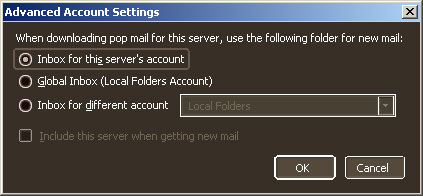
There is a button in the lower right marked "advanced." Click on this and you will see this pop-up window:

Thunderbird Advanced Account Settings

Select "Inbox for different account" and choose the account you set up to use as your master account. Don't forget to check the "Include this server when getting new mail" box.

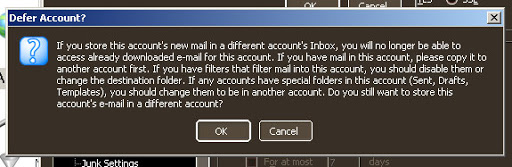
You will get a warning message marked "Defer Account" that looks like this:

Thunderbird Defer Account

This is the part I mentioned in my note earlier. If you change this setting for an account after you've received mail to the account, you'll lose that mail. If you make this change at the very beginning -no problems. So click OK if this is a brand new account, or if you've already backed up any received mail for this account.

The account is going to disappear from Thunderbird's left window pane (where only the "master" accounts should show). Don't worry! You can still access all the settings for the "sub-account" by clicking on "view settings for this account" for any of the master accounts. All of the accounts will be listed in the "account settings" pop up window. You can also access the panel from Tools>Account Settings...

At this point, you'll likely want to make a few other changes for the "sub account." Go to the account settings panel, click on the sub-account and make the appropriate alterations (how often this address should check the server, if you want to empty trash on exit, don't download messages over a certain size, etc...) The most important part: under "Copies and Folders" for the sub account, make sure you set the "sent," "drafts," and "templates" folders to the master account in the corresponding drop down menus, and under "Junk Settings" select the junk folder for your master account.

As a final note: don't forget to select the correct "Outgoing Server (SMTP)" for your sub account. The outgoing server setting is on the main account settings page, seen when you select the name of the account you are altering.

Now do this for every account that you want to use. It takes a while to set up 30 accounts, but in the end it's worth it.

A couple extras that make things even nicer...

1. Order of Accounts
Thunderbird lists all your accounts in the order you created them. This is a serious pain in the keester. You can alter the order in which they are listed by going in and editing the prefs.js file, but a clever chap calling himself "chuonthis" has created a lovely little app called Folder Pane Tools (current version at posting is v0.0.5.1) that makes things even easier. Install the .xpi to Thunderbird and you are given the ability to alter the order of all your accounts (make changes via Tools>Add-ons>Folderpane Tools>Options).

Very nice.


2. Webmail
Obviously, this whole thing would be worthless if you couldn't check your Yahoo, Gmail, Hotmail, etc... accounts, so the WebMail app is extremely necessary.


3. Search Functions
I haven't installed it yet, but I'm looking at GMailUI if for nothing else than the "across folders" search functions. Currently Thunderbird's search and filter functions are limited to within a folder, which sucks when you're setting things up as outlined above. You want to be able to search through all your e-mail, not just what's contained in one master account (unless you do, and then you can!). Hopefully I'll find an "across folders" search and filter that I like soon.


4.Calendar
I installed Lightning today (Thunderbird's Calendar program).

I found an excellent post on bfish.xaedalus.net regarding how to set up Lightning and Google Calenders with the Provider Add-on so that you can sync your Google Calendar to Thunderbird via iCal and then alter your Google Calendars from inside Thunderbird.

Wicked cool.

note (4/1/8): it looks like the current version of Provider doesn't work with TBird Portable, so while you can see your Google Calendars, you can't interact with them. This makes me sad.

retraction (4/2/8): I'm an idiot. I reread the bfish how to and realized I had used the private iCal link from Google instead of the private XML link. It is now working like a charm. I love it.


5. Signature Functionality
I started out with Signature Switch, but I don't like how you can't position your sig above all the quoted text (if you're 10 messages into a conversation with someone, your sig is buried deep). Also, and this baffles me, you can associated signatures with addresses in the "to" field, but not the "from" field. I want messages sent from certain accounts of mine to have specific signatures attached. This is way more important to me than associating a sig with the address it's being sent to.

So I think I'm going with QuickText for my sig function. You can create word shortcuts (sort of like an auto-fill) and insert the text wherever you choose.


6. Address Book
I just installed the Contacts Sidebar, but I haven't started using it yet. I'll let you know.


If this post helps at least one other person get a handle on their out-of-control proliferation of e-mail addresses, then it was worth my time. If you feel moved to say "thanks" by buying an album... that'd be grand.

Saturday, December 15, 2007

I have succumbed to Facebook.

Well, I finally broke down and joined Facebook. The odd thing is, unlike most of the "tools" on MySpace (search for friends, search by location, events, etc...) the tools and networking interfaces on Facebook actually work! What a concept.

I'm not sure how much I'll actually log on and "interface" (you can get lost in that black hole), but I've at least got the info up there for when people come looking for the music (Dan Beahm and The Invisible Three, DB3, Cats or Cars).

The iLike thing seems to be the music app of choice, but I think it's pretty lame that your Facebook page for your band and your iLike page are not the same (or even linked for that matter). Makes things confusing for all parties involved.

For instances, the above links go to the Facebook pages for each artist, but below are iLike Facebook links to the iLink pages for the same artists (confusing, no?).

Cats or Cars
iLike Cats or Cars

DB3
iLike DB3

Dan Beahm and The Invisible Three
iLike Dan Beahm and The Invisible Three


The other frustrating thing with Facebook and MySpace (and this is a Gmail thing): any notifications that come in from either service go straight to spam. And it's infuriating that you can't set up a Gmail filter to place mail in the inbox (only archive, star or trash). WTF?! Who cares if a label or a fucking star was placed on a piece of mail that's in my spam box?! Why can't I whitelist text or a subject or a domain? And I know this is a feature that people constantly write to Gmail about ('cause I do it about three times a week).