Showing posts with label gadgets. Show all posts

Wednesday, September 30, 2020

Watching Media from USB on LG Smart Tv

 Since LG has done such an abysmal job of providing any meaningful information on the topic of watching videos from a thumb drive via an LG Smart TV... I guess I will do the work for them.


The USB drive evidently has to be formatted as Fat32 (exFat, even though the new "universal standard," will not work).

The TV can read most typical video formats, including to my surprise, MKV.

After searching and searching for any meaningful information on how to get things working (file formats, file structure, etc.), I finally just started poking around in the TV settings to see what I could find.  Eventually I found a way to format my USB drive with the television, so that at least showed me what format the TV preferred (Fat32).  Formatting via the TV named the USB drive "no name" and created a folder called "LG Smart TV."  In that folder is a subfolder named "TN," and inside that folder is a file called "INFO."

The INFO file contains this data:

{"INFO":"{ \"core_os_release\": \"3.8.0-61408\", \"returnValue\": true }{ \"device_name\": \"m2r\", \"returnValue\": true }"}
After formatting the USB drive with the television, I popped it back into my computer and loaded it with some videos I had created via Handbrake.  However, since the drive is now formatted as Fat32 with a 4GB file size limit, none of my MKV's ripped from my DVD/BluRay collection can be placed on the drive (those files are larger than 4GB).

There is some information on the LG website that indicates you can also use the NTFS format, which would allow larger file sizes, so I reformatted the USB drive to NTFS using my computer, and sure enough, NTFS works as well.  Therefore, I can now watch the larger MKV files via USB on the LG TV.  Huzzah!

...


Wednesday, September 16, 2020

ErgodoxEZ Split Ergonomic Keyboard for Video and Music


My Microsoft Sculpt was failing me.  I don't know if it was my incredible typing speed (ha!) or faulty hardware, but there were way too many "failed strokes" for me to keep using a wireless keyboard.  I love the Sculpt's layout, low profile, and portability, but it doesn't matter how good something feels if it doesn't work.

I started coding for design at the turn of the Millennium (so fun to say!), and quickly learned how bad a "regular" keyboard is for 10 hours or so of daily use.  Back then, there weren't a whole lot of "ergo keyboard" options; the MS Natural Keyboard was pretty much it.  But I found that my shoulder/wrist issues necessitated getting my mouse closer to the keyboard (my arm was sticking out to far to the side), so a keyboard with no number pad became imperative. Thus, I figured out how to saw off the number pad (as well as configuring various incarnations of track pads and tiny track-balls incorporated into the keyboard housing in various locations).

When Microsoft released the Natural Keyboard 4000, I upgraded, but again had to saw off the number pad.  Finally, in 2013 they released the Sculpt, and to my joy, it came with the numpad detached!  However, after years of use, the "wireless-ness" of the Sculpt can no longer fulfill my needs.  Thus, the search for a new wired keyboard began.

There is a dirth of one-piece split keyboards with no number pad.  And once you get into two-piece "coding" boards, the price goes up dramatically.

I researched for a couple of months, and the ErgodoxEZ and Dygma Raise ended up as my two finalists.  However, the Dygma uses it's own (though still open-source) Bazecor software for layout and functionality, which even after a couple of years in the real world seems to still have many issues (as reported by regular users), so I was definitely leaning toward the Ergodox, which utilizes a more established and ubiquitous open-source software and has many "compilers" available online for easy access and use.

Over the years social media and template-based web design has turned me off to designing for the web and the coding that used to go along with it (HTML, PHP, Java, etc.), but I still use a keyboard for 8 to 10 hours a day; it's just spread over more activities, the primary being video and music editing.

I began researching split mechanical keyboards just for their ergonomic benefit, but I quickly became very interested in how I could utilize the magic of programming the layout and key functionality to improve my editing workflow.

Now that I had decided which board was going to be best for me, I started watching eBay and Craigslist to find something a little more affordable than the $350 (!!!) the ErgodoxEZ was going to cost new.   The boards on eBay were mostly in auction format and still going for nearly retail.  Craigslist had pretty much nothing listed except a Dygma Raise for pretty much MSRP.  However, after a couple weeks of diligently watching, I got super lucky and found someone "cleaning out old stuff" who was selling an early model ErgodoxEz (no tent legs, no back light) along with a "Let's Split" tiny, mechanical, split keyboard for $100!

I've spent the last couple of weeks familiarizing myself with how everything works, developing my keyboard layout, switching out key caps, loving the "clickity-clack" of mechanical switches, and getting used to using a keyboard that looks and feels nothing like a "regular" keyboard.

For the configuration part, you just create a layout using Ergodox's free online configurator (or one of the many others out there), then click "compile" and download the binary hex file to your computer.  You then use a tiny little executable called "Wally" to flash the hex file to your board.

The fun part is the vast array of functionality with which you can program each key (multiple functions, macros, etc.).  The fact that you can use layers is also great.  Basically, with a keystroke, the entire keyboard can have each and every key reassigned to a new function... and you can have pretty much as many layers as you wish.

I began my journey with the Ergodox by looking for layouts that others had created for video/music editing, and surprisingly, I couldn't find a single one.  I don't know if it was due to sub-par searching skills, or the fact that these boards are targeted more at coders and gamers, but I couldn't find anything with "video," "editing," "Premiere," or even "Adobe" in the description.  After a while I finally found a layout with "Avid" in the title, but it appeared to be just the default keyboard layout.

What I quickly learned is that there are so many layouts available online in Ergodox's un-curated database that it would be futile to try and find one that fit my exact needs.  It has taken a few weeks, and I'm still making changes on a daily basis, but it's getting to a point where I am definitely in love with this board and what a customized layout can offer.

One thing I decided early in my keyboard development was that I was going to base the general layout on the "status quo."  I think a lot of people go so far outside the realm of normalcy that when they don't have their personal keyboard with them, they can't use a "normal" board!  I find this dilemma frustrating enough when I'm on someone else's computer, and I just don't have a split keyboard or my trackball or ShuttlePRO, so I didn't want to paint myself into a corner getting used to a keyboard layout that would alter my muscle memory into oblivion.

Thus, the first layer of my layout is based largely on the MS Sculpt that I have been using for the past seven years.  I have tweaked the layout a bit to maximize functionality with Adobe Premiere, but it's largely just a "normal" keyboard layout.  However, a lot of the "extra" keys are programmed with dual functionality or even macros that allow me to execute Premiere functions more quickly.

At first, I was worried I was going to have to program all the "shift" functionality for each key, but evidently that's an Operating System thing, so you don't have to program for that.  Any key in combination with "shift" does what it would normally do on any keyboard: lower case and capital, but also symbols with their pre-assigned secondary functions (i.e. ";" becomes ":" with the shift key).

The second layer I created for media and navigation.  I set one of the first layer keys as a "momentary switch" so that when pressed and held, the rest of the keyboard becomes controls for the media player, navigation arrows, etc.  The second layer also hosts my "mouse keys."  The Ergodox has some cool "mouse" functionality that I haven't played with much yet, but basically they make it possible to control the cursor as you would with a mouse, except with key strokes.  It sounds clunky, but evidently it's pretty effective once you get used to it.

The third layer I created as symbols and numbers, with the layout based on an actual number pad (along with it's specific functionality).

And that's about as far as I've gotten to date  I'm not sure if I'll create a fourth layer loaded up with macros and multi-function Adobe Premiere and After Effects keys, but right now I'm just getting used to and enjoying the improved functionality afforded by the current layout and combination keys.

One final note: my ErgodoxEZ came with blank key caps, which is fine for "hands on" (literally) typing, but when I'm editing video and recording music, my hands are rarely fused to the home row.  Instead they are often handling peripheral controllers or jotting down notes.  Quickly finding keys is difficult with nothing printed on them! Luckily the "mini split" that came along with the Ergodox had printed keycaps.  I switched out all the ones that would work (letters and a few symbols), and then I penciled in the symbols and functions on the rest of the blank keys.  Obviously pencil marks aren't going to last long (not to mention they're hard to see), so I'm looking for a decent solution for printing on key caps.  I have seen a few people online having success with laser etching/engraving and toner, so I may try that at some point, but it would be nice to find a more permanent way to quickly mark key caps with their assigned functions.  That's really my only "gripe" at this point, but everything else is a great improvement upon my previous situation!

If you want to try out the layout I have created (and alter it for your own use), here is the link to Ergodox site:

Tuesday, July 9, 2019

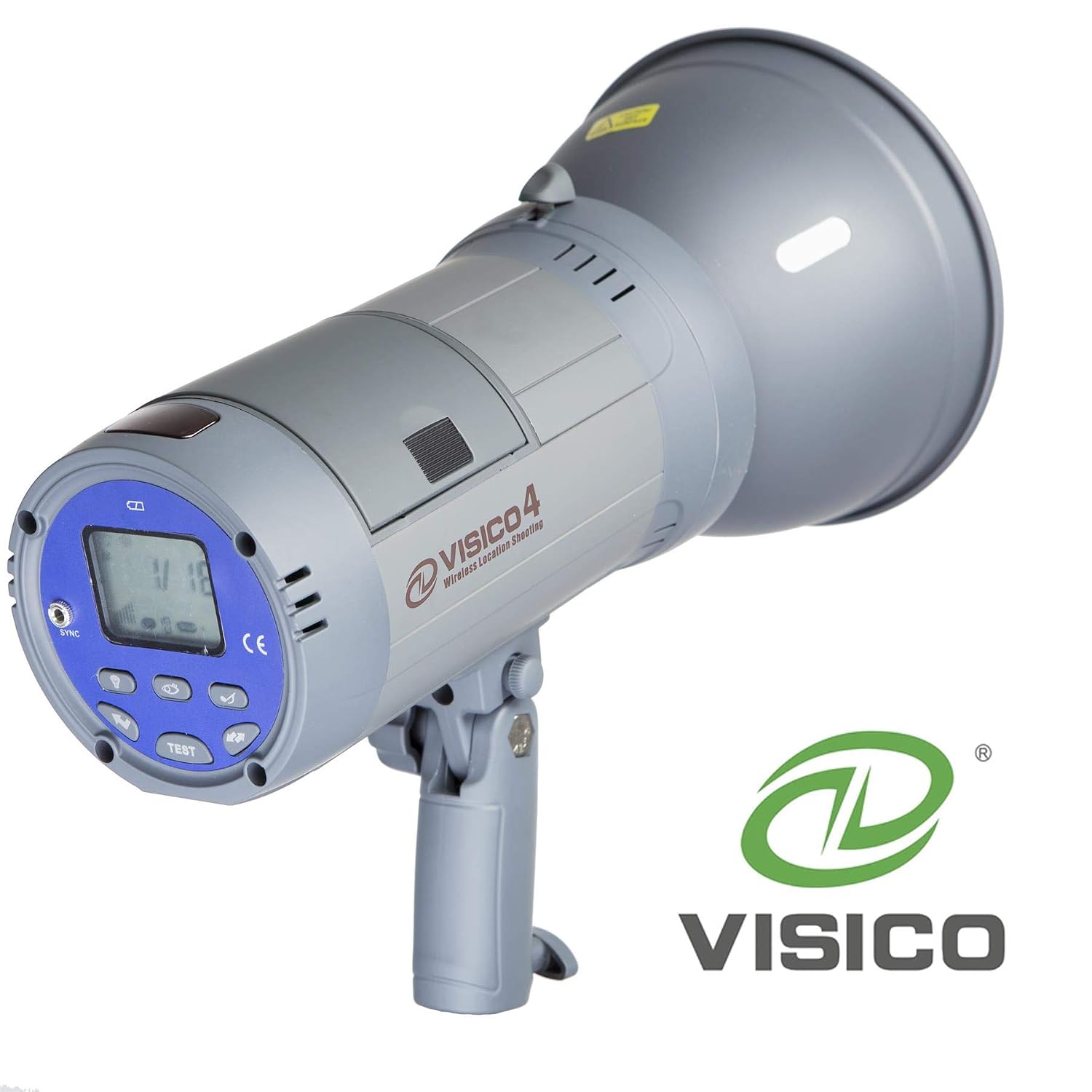
Neewer Vision4 and Visico 4 - SAME FLASH

It's incredible to me how difficult it has been to find a user's manual for the Neewer Vision4 flash.  I finally found some information that clued me in to the fact that Neewer's Vision4 is a rebranded Visico 4, and I could find a manual for the Visico.


https://images-na.ssl-images-amazon.com/images/I/71siVo32X-L._SL1500_.jpghttps://i.ebayimg.com/images/g/69EAAOSwmoVan5ui/s-l1600.jpg

So this post is just to let people know: if you're searching for a Neewer Vision4 manual, search instead for Visico 4 (which is much easier to find).
...

Wednesday, November 29, 2017

Bluetooth Problems with MacBook Pro Running Bootcamp (Windows)

For as long as I've been using my MacBook Pro, my Bluetooth has been abysmal. I run Windows via Bootcamp, but my wife uses her MBP as a Mac and she has the same problems (maybe worse). She got a nice little Jawbone Jambox Bluetooth speaker for Christmas and never even used it, because she couldn't ever get it to connect to her MBP (and for me to get it to work, it took some serious effort, and even then the performance was sub par).

I have several audio solutions set up around the house and studio, and Bluetooth is a fairly substantial part of the system(s), so today I decided to finally figure out what is going on, once and for all.

For those who come across this post with the same problem looking for a quick-fix answer, try this:

  1. Go to Device Manager > Network adapters > Broadcom 802.11n Network Adapter
  2. Right click and select Properties.
  3. Click the Advanced tab, go to Bluetooth Collaboration, and select "Enable" from the Value drop-down menu on the right.

After a lot of research, this seems to be the solution that works for most people.  And while it did help my problem, there are still major problems with my Bluetooth connection.

What it boils down to?  ANYTHING electronic (yes, I understand the computer is electronic, and that actually IS a factor!) will interfere with the Bluetooth Adapter's signal.  It really is just a matter of the Bluetooth hardware in earlier MacBook Pros being utter and total shite.

After I completed the steps above to enable Bluetooth Collaboration, I still had issues. I tried rebooting.  I tried altering other settings with both the network adapter and the Bluetooth devices (drivers on the MacBook as well as the devices themselves).  Then I remembered reading previously that a lot of people had problems with actual signal interference.  The MBP power block was sitting on the table (not near enough for me to think it'd be an issue, but still... on the table).  I moved it, and like magic, the music streaming over Bluetooth stopped stuttering.  But as soon as I started using my mouse (connected via wireless), the stutter started again.  So I unplugged the mouse receiver, but that didn't seem to help... and then I actually turned the mouse off via its physical switch, and the signal was smooth again... until I tried looking something else up on the web (using the MBP track pad instead of my mouse), when the stuttering started again.

So I am now better than where I started.  After enabling "Bluetooth Collaboration" for the network adapter, I can at least walk away from the laptop and stream a smooth music signal to my Bluetooth receiver and stereo.  However, if I touch the computer or put anything electronic anywhere near the MacBook, the signal will be interrupted and stutter like crazy.


Wednesday, February 1, 2017

Five Months Later with The Droid Z Force

Man, I gotta say, other than size (which I will bitch about vehemently until they bring phones back down to the size of my original Droid Inc.), I am loving this Droid Z Force.

droid z force JBL tiltExcept for the most extreme high-use periods, I easily get two days on a charge, and when it drops down too low for my liking, it only takes about an hour to get it back to 100%.  The quick charge is amazing, even when using “slower” chargers like my Anker multi-port or my car charger (though these do have higher powered ports than average chargers).

Not only that, but the speaker mod, though a little bulky, contains a huge battery (and the added bonus of actually pretty decent sounding music on the go!).  I often just leave it on the phone, even if I'm not planning on using the speaker.  It still fits in my pocket nearly the same (obviously quite a bit thicker), and it actually makes the phone a little bit easier to hold onto (though it's not great in the car holder –too thick).  The phone with the speaker attached is kind of like carrying around a comfortably-edged (rounded), small Bluetooth speaker... except with the added bonus of a powerful phone/computer/browser/media player attached! And the kickstand on the speaker, which I use more often than I ever thought I would, is just icing.

Not only that, but for around $80 (or $30-40 if you want to brave the eBay gray market) there is a Qi (wireless charging) 2220mAh additional battery mod by Tumi/Incipio (which are now one in the same since Tumi licensed Incipio for a year).  You can go for days without charging!

The Google Pixel seems to be ruling the current mobile roost, but the Droid Z Force is spec'd pretty much the same, and all the apps that will "only" run on the Pixel actually run on the Z Force as well (including all the VR stuff that I have no use for).  And though a lot of people think the Pixel camera is tops, I really think the Droid Z Force phone is great (and, for what’s worth, I make my living taking pictures).

I feel like I bought at the right time.  Any time you purchase a phone and they start the hard push with advertising four months later (like with my GS5), and then the specs are still as good as all the brand new phones coming out (like with my GS5)... I feel satisfied.

All this for a phone I got for absolutely free (w/ two year contract) because at the time everyone was going gaga for the Samsung S7.  Doggonit, I feel like a winner.

Cons:

  • not water proof (at the time I bought my GS5 I thought “water resistant” was a gimmick, but I actulally miss this about my GS5 –which I used to shoot 4K video UNDERWATER for eight hours!!!)
  • no cases, especially with varying sized Moto Mods, so no protection for the phone or additional mods; I installed a matte screen protector (which I prefer to a glossy screen anyway) and the screen is advertised as unbreakable, so there’s that, but the phone and mods are definitely showing some physical wear
  • size, always the size (bring back the original Droid Incredible!)
  • though not a con with the phone, I was extremely disappointed with the “Hasselblad” (apparently in name only) Moto Mod; it’s junk, especially compared to the Droid Z Force’s stellar native camera

Monday, September 19, 2016

Hasselblad Moto Mod is a Thorough Disappointment

I am a photographer.  Thus, I was pretty stoked to know when I purchased my Droid Z Force that there was a Hasselblad Camera Mod coming down the pike.

I waited patiently for nearly a month, and finally it arrived… and what a major disappointment it was.

hasselblad-moto-mod

Here’s the short of it: the Motorola Droid Z Force has a pretty decent camera with a 21MP sensor (some would argue the best camera phone currently available).  The Hasselblad has a 12MP sensor.  Pretty much the ONLY thing going for the Hasselblad Moto Mod is the “optical zoom,” but you can “zoom in” on a 21MP photo and have nearly the same amount of zoom as the 10x optical on the Hasselblad’s 12MP photo!

The Hasselblad has a 4.5mm to 45mm zoom (that’s why they call it a 10x zoom) which is basically a 25mm to 250mm 35mm equivalent.  The Droid Z Force has a 4.51mm lens, which is equivalent to 26mm on a 35mm camera.  So a 21MP photo can give you nearly the same “zoom” digitally at the Hasselblad’s max resolution of 12MP.  In other words, if you simply crop the Droid’s photo to half (crop a 21MP photo to the Hasselblad max pixel dimension of 12MP), you’re still at 10.5MP and your 35mm equivalent is 52mm (the Hasselblad optical zoom maxes out at 45mm).

Any positive review I’ve seen for the Hasselblad mod (they are never raving, only lukewarm) goes on and on about the zoom, but frankly… who cares when the zoom really doesn’t do much for you and everything else comes up short?

Hasselblad Moto Mod shortcomings:

  • Only 12MP sensor (phone has a 21MP sensor) and also physically smaller (1/2.3 inches vs. 1/2.4 inches)
  • minimum aperture of f/3.5 –are you kidding me?! Not only that, but it’s not fixed, and the variable goes all the way up to f/6.5!!!  By the way, the phone’s minimum aperture is f/1.8
  • Max ISO is 3200 (same as the phone)
  • lesser focus technology than phone (the Z Force utilizes laser and contrast auto focus with phase detection; the Hasselblad only utilizes contrast/phase detection)
  • bad 24fps video (choppy)
  • no video HDR (which the phone does have)
  • no optical stabilization for video
  • No 4k (which I don’t care too much about, but if this is an “upgrade” it should at least be able to shoot the equivalent of the phone to which it’s attached!)

And from what I’ve read in every hands on review I’ve seen, the focus is no faster than the phone (often the user says it’s slower), the shutter lag is much higher than the phone’s, and the quality of the photos isn’t really a bump since the phone already has a decent sensor and utilizes Moto’s “Deep Trench Isolation” technology to isolate pixel color.

Sure, the Hasselblad Mod can shoot RAW, but who cares, considering all the other shortcomings?

Please explain to me why I should spend $250-$300 on a “mod” that I have to carry around if it doesn’t IMPROVE the camera on my phone (or even come close to what’s already there!).  Just because it says Hasselblad?  If I’m shooting more than what the very capable Moto Z Force camera is capable of, I think I’ll just carry a REAL camera that actually gives me a reason to mess around with a second device.

Boo, Hasselblad.  You guys should be ashamed of yourselves for letting Motorola slap your name on a piece of garbage that doesn’t even work as well as the phone to which it attaches.

…

Tuesday, August 9, 2016

My First Couple of Days with the Motorola Z Force Droid

I REALLY wanted to buy a small phone for my next phone, but the Fates conspired against me.  The only option I had was the iPhone SE, and while I LOVE the size and design of the phone (I really love the hard edge and metal buttons and switch), I know I can’t live in an iOS world.  I would go mad.

The only other option on the market is the Sony Z5 compact, which I REALLY wish I could use, but it’s a GSM only phone, and I live in Denver and regularly travel into the mountains, so Verizon (CDMA) is really the only carrier I can use if I expect to have signal when I want it.

Thus, for my next phone I went with one of the LARGEST phones on the market. [frown]

motozForcestyleshell

I ended up purchasing the Droid Z Force, mostly because it was $108 (with two year contract and including tax) out the door at Best Buy (and they threw in the JBL speaker mod to boot).  With Verizon, there is a $40 activation fee that appears on your bill when you purchase a new phone… even at the Verizon store!  Evidently the only way to get that fee waived is to purchase and activate online with Verizon, which would have been a lot more expensive (full MSRP and no bonus mods).

Man... when any store tries to convince you that the monthly payment plan is the way to go, CHECK... THEIR... MATH!  Even with the "monthly line discount" they try and bait you with, if you do the monthly payment, you are paying full price for the device over 24 months.  That means you also pay the tax on the MSRP up front!  That alone was going to be $62, then the activation fee, then the full cost of the phone over time (meaning a higher bill every month).  Crazy business.

The Samsung Galaxy S7 was going to be $220 (with 2 year contract) plus activation, so I just went with what was saving me money, not to mention avoiding the awful one-two punch of the way Samsung and Verizon turn a great phone into a piece of crap with their bloatware (and I have been quite pleased with the "clean" environment of the Moto-verse).

As I mentioned, BestBuy was also giving away the JBL speaker mod with the Droid Z Force, and while it's not going to be loud enough for DJ-ing parties and weddings, it's actually a pretty decent little speaker and will be great for working on location and listening to tunes.  It has it's own battery as well, so that's great (I have read that the speaker battery can actually power the phone, so it's like a battery mod as well, but I haven't confirmed that yet –I have confirmed that you can charge the mod through the phone though).

While I definitely hate how big the Droid Z Force is (bigger than my S5 and probably the same size of the Note 5), I have to admit I'm loving the functionality and speed.  The Motorola fingerprint reader is stellar, and I love how you can use it to lock and unlock the phone one handed.  You can also choose to link it to other passwords and apps, which is nice (though I won't be linking it to my banking and purchasing apps).  They warn you that it's not as secure as a pin or pattern, but I assume that's because you can "lift" a print from the reader, so I'm trying to get into the habit of swiping my finger down after it registers, effectively wiping the reader clean of my physical print.

When I powered up the phone to activate it in the store, the battery was at 99%.  We were on our way into the mountains for a wedding, and the device ONLY comes with the turbo charger (no stand-alone USB-C cord to use with a car charger --you have to order that on your own, which is pretty of annoying since you don't have a good way to transfer files to/from a computer until you do that), so I had no way to charge the new phone except for plugging into a wall.  Even with doing all the initial syncing, playing with the phone and figuring out features, downloading all my apps, etc. (all over 3G and 4G/LTE because I had no wifi), the phone was still at 33% the next day's afternoon!  Way more than 24 hours on the factory charge with a substantially higher amount of use is pretty impressive.

Not only that, but I went from 25% to 100% in less than a half hour charge using the included turbo charger.

I have been using Qi wireless charging with my S5, and I actually love it, so I'm pretty disappointed that the Droid Z Force doesn't have wireless charging, especially since pretty much EVERY other "flagship" has it these days.  I guess the turbo charge will have to make up for it.  There is an external battery pack mod that will do wireless charging, but I’m not going to buy an extra mod just for wireless charging.

I do wish the phone was water resistant like my S5 and the S7, and I'm not sure why it isn't.  The Z Force only has three physical buttons, the card slot, and a USB-C port.  It seems like it would have been relatively easy to seal up.  They advertise that it has a water resistant outer covering, but isn’t all plastic and glass water resistant?  I’m not sure what that even means.

The camera is great so far.  There's a "pro" mode that allows me to set ISO (though not aperture and shutter speed), so I'm loving that.  Maybe there's an app that will allow me to access those extra manual features.  Also... the camera is 21MP, so I can actually do some zooming and still have "flagship size" (8-12MP) and quality on the zoomed image.

Hasselblad is coming out with a camera mod for the phone (there was actually a physical spot for it on the Z Force displace at Best Buy, so it must be coming soon).  I'm interested to see what the price will be and how much higher the quality is (it will supposedly do RAW and will have a 10x optical zoom).  It seems weird to have to get a "better" camera mod for a phone that already has a 21MP camera, but we'll see.  Also, I'm not sure what the advantage would be to having a "mod" instead of a stand alone camera that will likely be the same size, but again, I guess I'll see.

I've read that though the screen is "shatterproof," that feature comes at the cost of being pretty scratch prone (the surface layer that keeps it together is soft), so I ordered a couple screen protectors.  I prefer a matte finish on my screen anyway (no glare and a more pleasing tactile feel).

I'm also trying to figure out which case to get.  I can't imagine not using a case on a phone to protect from scratches and dents, but the PITA about the "mods" on these phones is they won't attach if the phone is sporting a case.  Thus, I need to find a case that is easy to take on and off, and that can weather the abuse of constantly taking it on and off, so I'm able to attach mods when I want.  To me, this is the biggest draw back of the phone (other than it’s size).

There is also a "style shell" that is just a faux wood back.  I guess it looks pretty cool, but it really just adds thickness (almost doubles the thickness of the phone), so I'm not sure what the point is, other than looks (which don't matter if you're using a case).  If the "mod" doesn't really offer any protection, it's seems kind of stupid compared to a case that would protect the back, edges, and front (with a raised lip).

Again, I HATE the size of this thing.  It would be awesome if it were the size of my original Droid Incredible. But everything else about the phone seems pretty great so far.  And I really can't get over how much I'm loving the finger print reader to turn the phone on and off "securely."  Not having to enter a pattern all the time is really nice.  It's actually got me locking the phone every time I turn the screen off, vs. setting a longer time out to lock the phone for reasons of convenience (and making the phone less secure).

…

Monday, February 29, 2016

Why the Best Phone for 2016 is My Phone from 2010

HTC-ADR-6300

The HTC Droid Incredible ADR 6300 (1st gen) has my vote for best phone of all time.

Yes, in today’s world there is an issue with certain things gobbling up the internal memory and a woefully problematic issue with the phone not being able to use the entire capacity of the internal memory for phone features (and only being able to use a TINY portion of said internal memory), but in 6 years I’ve learned to work around that.  For the trade-offs, it’s absolutely worth it.

And yes, the Incredible doesn’t have 4G LTE capability and maxes out at 3G, but I don’t care.  I just want something that fits in my pocket so I can make phone calls, take pictures, listen to music, and occasionally comparison shop by checking a price online while I’m at a store.  Sure it’s only running Android 2.3.4, but who cares?!  I don’t need Marshmallow to do any of the things mentioned above.

My tablet (LG GPad 8.3 VK810) and other devices (two rooted Galaxy S5’s) tethered to the tablet via Bluetooth take care of my higher speed data needs on the rare occasion I need a faster connection via mobile device, and when I’m traveling or on location for photo/video work, I’ve got those with me for the larger screen, faster data connection, updated Android OS, and more processing power.

But the biggest factor in my decision?  SIZE.

Size. Size. Size.

All currently available phones SUCK as far as size goes.  They’re just WAY too big!  They hurt my hand and just barely fit in my pocket.  At 4.5” x 2.25” the Droid Incredible is perfect.  If I need a larger screen for video, I’ve got my tablet.

Replaceable Battery

Before there were all these power banks so readily available now, you needed to actually swap out batteries, and the Incredible was king.  I have three high capacity batteries.  I can fly from Denver to Tokyo, watching videos the whole way, without worrying about running out of juice.  I’m more likely to use a power bank now, but it’s comforting to know I’ve got extra batteries that are VERY easy to swap out if I need them.  Not to mention my bedside charging dock also has a slot to charge an extra battery.

Expandable Storage

It’s true that the Incredible has issues in regard to internal memory, BUT it also supports micro SD cards.  My current Incredible has a 128 GB micro SD card.  And I’ve got extras for traveling with even more movies and music and photo/video storage.  I’ve got THOUSANDS of movies and lossless music files available (without streaming) at any given moment.

The Dedicated (and physical) Optical Cursor Pad

Why did mobile makers end this fantastic feature?!  My Droid has an optical cursor pad that allows you to move your cursor around the screen instead of trying to pin point your cursor location with your big, fat finger on a mobile screen while you YEARN to at least have cursor arrows always available (aggravating on even the largest of current devices).  Not only that, but it functions as a PHYSICAL button for camera, etc., and since it’s optical, it could have also functioned as a fingerprint reader if they’d have taken the next logical step.

Landscape Docking

The Incredible’s USB port is on the side.  That means the charging dock orients your phone in landscape.  It’s perfect for watching video while connected to power and using as a bedside clock.  Why did phones stop doing this?!

Beautiful and Responsive AMOLED Screen

Why are companies putting 4K screens in mobile devices?!  There is a massively diminishing return on pixel density and resolution for mobile devices, especially since the screen is the number one thing that gobbles up battery power.  The size and resolution of the Droid Incredible is a serious sweet spot that shouldn’t be ignored.

Not to mention, I’ve replaced the screen 4 times (I’m hard on phones).  It costs $10 to do so (cheaper than a screen protector on a lot of phones).  It’s an easy swap, and the screen has always been cheap and readily available via Amazon.

Camera

True, the phone only has an 8MP camera, but the results are actually quite good (though this phone was before phones had HDR, so I do really miss that), and I love that the phone is so tiny that people are less likely to notice you shooting like when you’re using one of today’s GIANT phones.  Plus, the Droid Inc. was the first phone to have a decent LED flash (though it still sucked, as do most LED flashes available on new phones), and one that could actually be TURNED ON to use as a flashlight!  There is also no front-facing camera for video calls, but that’s something I actually prefer.  If I want to make a video call, I’ll use my tablet.


So the Droid Incredible doesn’t have a SIM card or LTE, only has an 8MP camera, has some internal memory issues (that can be worked around), and is maxed out at Android 2.3.4.  But all these things considered, to me it’s still a better phone than anything offered today.  For a phone from half a decade ago, that’s pretty… Incredible and STILL the Droid that I am looking for (to my credit, I didn’t do either of those things until now).


The current contenders that just don’t cut it:

Sony Experia Z5c

The ONLY currently viable available-to-purchase-new phone where the size is right.  The camera is awesome.  It’s got (had) the best processor available (Snapdragon 810 octacore) until the Snapdragon 820 comes out with the new Flagships this week (S7, G5, etc.).  This is the phone I would have if I could, but I’m not willing to pony up $450 for a phone that might work using only LTE on Verizon’s CDMA network (it’s a GSM phone).  Again, this would be THE phone for me, but no US carrier sells it, so you have to buy it unlocked and outright, and the US warranty version has slower data speed than the euro version and no fingerprint reader.  I can buy the euro version via Amazon, but it’s a gamble.  Why does Sony always take it right to the line and then drop it?!

LG G5

The “modular” thing seems to me like a gimmick and defeats the purpose of having everything you need in/on your phone at all times by requiring you to insert modules.  Why not just carry around separate devices for all the things those modules cover?  How is it different? Plus, the phone is gigantic.

LG VK10

The camera is amazing.  The audio processor is amazing.  It’s beautiful.  But the phone is FREAKING gigantic.

Samsung S5, S6, S7

The S5 has been my main phone for a couple years.  The camera is pretty good (I actually shot a 4K video shoot with it… UNDER WATER FOR 8 HOURS!).  The hardware is actually pretty amazing.  However, the way Samsung and Verizon have absolutely crippled the phone is shameful.  Not a day goes by that I don’t scream “I HATE THIS PHONE!” But it’s not the phone’s fault, it’s the software.  I’ve got a second G5 that I rooted, and it’s fantastic.  But again… the phone is huge.

HTC One (M8, M9, M10)

Meh.  The camera in the M8 was supposed to be a game changer, but it’s really not all that (in fact, it’s quite bad).  I do love the stereo front facing speakers and how the phone looks.  And now in 2016 CFO Chialin Chang is promising, “We can confidently say that HTC will have a very, very compelling camera experience,” but I certainly don’t trust that statement, because it’s what they said about the sh*tty camera they put in the M8!  Also, it’s just too big!

OnePlusX

Not for Verizon.  Even on AT&T there were lot’s of problems with the bandwidth not being correct for the US market with earlier phones (1 and 2).  I’m just not willing to take the gamble.  Plus, its too damn big!

Nexus 6

Seems to be a pretty good phone, though I don’t like the “bump out” for the camera lens on the back.  But it’s gigantic.

iPhone

I hate Mac and it has no place in my work flow.  The end.  Well, maybe not the end.  To be fair, Mac has the prettiest hardware.  I actually like the form factor of the iPhone 5s.  And the iPhone 4 is probably my favorite mobile phone form factor of all time (I love the metal edge with the metal buttons and flip switch).  But with my work flow and being a control freak, I just can’t live in the Mac world.  I also hate how they obsolete (yes, I’m using “obsolete” as a verb) their own hardware every 10 seconds.  Seriously?  You can’t realistically run the current iOS (9) on their last gen phone?! Ridiculous.  And the iPhone 6 (and especially 6 plus) is… too big!

…

Wednesday, February 17, 2016

Roku has a “Contra Code” Secret Screen for Wifi Antenna Settings

UPDATE (5-31-16): Gardner Lonsberry has created an info. graphic containing TONS more secret screens for Roku.  Scroll to the bottom to get the skinny.

Remember the Konami code that got you 30 lives in Contra (and other stuff in other games)?  Well there’s a similar trick for your Hulu Stick to get you to a “secret screen” with settings for the Wifi Antennas and a couple of other things.  It might not be as exciting, but it could be more useful (depending upon your priorities).

Up-Up-Down-Down-Left-Right-Left-Right-B-A

From the Home screen press…

  • Home x5 (press home button five times)
  • FF (not the pad arrow)
  • Down (on the arrow pad)
  • RW (not the pad arrow)
  • Down (on the arrow pad)
  • FF (not the pad arrow)

I was having a lot of frustration with the Roku in our kitchen dropping signal.  This is particularly aggravating, because when it happens the show you are watching disappears, then you have to wait a while for the Roku to reboot and get through the incredibly annoying “dancing Roku” screen, then you  have to navigate back to the content you were watching.  This is not fun when you’re just trying to watch something while quickly making a sandwich and getting back to work.

So after messing with the location of my router and trying to optimize it’s settings and power output, I went looking for tips on how to optimize signal reception for the Roku.  The Roku site basically blames your router and tells you to make sure it’s not by a window, in a sealed lead box (along with your kryptonite stash), or in your basement, but they don’t give you anything REALLY useful like the information here.

platform-secret-screen

The secret screen is labeled “Platform Secret Screen” and the first screen shows you how your Roku us currently functioning (temperature, IP address, SSID, Channel, N, RSSI, SNR, remote MAC address, remote battery level, etc.).  There are also options for System Operations Menu, Disable Travel Connect, WiFi Remote Menu, and WiFi secret screen.  Unfortunately none of these let you change the four dedicated content provider buttons at the bottom of the remote, but the WiFi Secret Screen is extremely useful.

wi-fi-secret-screen

On the WiFi Secret Screen there is a signal level meter for combined signal strength, antenna 1, antenna 2, and also a meter for glitch/sec.  This allows you to move around your Roku to optimize your reception.

This page also has Resets, Interference, Radios, and Power, so you can optimize your settings.

interference-mitigation

system-operations-menu

wifi-power-level

wifi-radio-controls

wi-fi-remote-menu

Setting my radios at TX 1 RX 1 kept my signal strength consistently at 22/23 (other settings were around 16-18 and fluctuated a lot more).  After trying different interference settings, I found “reduce non-WLAN interference” to be my best option.

Obviously your settings will depend upon your specific situation.

p.s.  If after getting things where you want them with your wifi reception you want to check the signal speed of what’s coming into your Roku, Vudu (a free channel with purchasing options for content) has a speed test under “info and settings.”

…

Props:

When searching for a solution to my Roku drop-out woes, I found most of this information on Richard Loyd’s YouTube channel here:  https://www.youtube.com/watch?v=k1GZO8e_KJo

The updated secret screen shown above is actually a lot more robust (there are more options, settings, and measurements) than the one Richard posted in his video from August 24, 2014.  This leads me to believe that Roku will be supporting and updating this feature into the future.

gqiwsuivaxuta2cspi3x

Tuesday, November 17, 2015

My Next Phone Will Be a… Sony?

UPDATE (1-14-16): Unlocked versions of the Z5 and Z5 Compact will go on sale in the us on Feb. 7 for $600 and $500, respectively. Now I just have to decide if I'm going to make due with my awful GS5 for now and keep waiting for the Z7, rumored to have a Snapdragon 820 chip instead of the 810 (the 810 has it's fair share of problems compared to the 820).

…

I am SOOOOOO sick of these GIANT phones they keep cramming down our throats.  If my HTC Droid Incredible had 4G/LTE I would be in heaven.  I would immediately switch back, old processor and almost no RAM be damned.  I long for the feel of that tiny and wonderful little powerhouse (at the time it came out) in my hand and pocket.  When I’ve been using my Samsung Galaxy 5 and then pick up my Droid Inc., it feels like I’m holding a matchbook.

I’m not quite ready to go “watch small” (plus, I wouldn’t be able to live without a really decent camera on me), but I can’t take these dinner-plates-as-phones any more!

Not only that, but I’ve been EXTREMELY unhappy with my GS5.  I’m not sure if it’s Samsung’s fault or Verizon’s, but the user experience on this powerhouse of a piece of hardware is just abysmal.  Never have I had a device butt-dial like the horrible GS5.  If someone texts, the phone wakes up… in your pocket.  I’ve actually had my phone dial Australia (among many, many, many other super-annoying things).  There is no way to disable this HUGE problem short of completely disabling ALL text message notifications.  If you want to know that your phone received a text, it will wake up in your pocket and dial your grandmother.  Period.

There are a bunch of other gripes about the phone that I won’t go into in this post, but what seemed on paper like it would be the best phone ever has just turned out to be a horrible, horrible user experience.  Not a day goes by that I don’t complain about how much I hate using the Samsung Galaxy S5 (even though I did use it to shoot an underwater film at 4k, which was a pretty crazy thing when the phone first came out).  I actually have a second GS5 that I rooted, and that’s better (though far from perfect), but it’s such a PITA to root and maintain a phone, especially once the GS5 upgraded to Lollipop, that I’m just ready for a new phone.

Wading through the possibilities, I find that the only phones available are these giant, god-awful eye sores that you can’t use with one hand (and I’ve got pretty big hands!).

Xperia_micro_1

If this Sony Xperia Micro concept phone designed by Dwight Looi were real, there is no question it would be my top choice for my next phone.  But since it’s just a concept, I’ll have to settle for the slightly larger Xperia Z5 compact.

Sony-Xperia-Z5-Compact-Unboxing_5-640x362

What do I like about the Z5 compact (other than the fact that at 4.6” diagonal it’s the smallest “flagship level” smart phone you can get in the US right now?):

  • Snapdragon 810 Octacore 64bit processor
  • 23MP camera (5MP through the screen front camera with 1080p video)
  • 4K video
  • Fingerprint reader in the power button (that supposedly actually works well, unlike my Samsung)
  • Water resistant (without the awful usb and headphone port flappy-crappy cover that my Samsung requires, which makes it basically NOT water resistant)
  • It’s boxy! (rounded edges look like preschool toys; give me razor sharp edges any day!!!)
  • rapid charge
  • dedicated camera button
  • supposedly .03 second focus speed?! (we’ll see – this article says it takes 3 or 4 seconds to load the camera app, so a .03 snap time doesn’t really matter if the camera won’t open quickly)
  • Best battery life in class (and since the compact has a smaller screen, it gets even better battery time than the Z5 even though the battery has a slightly smaller capacity)
  • up to 200GB microSD card
  • Cat 6 download LTE speeds on model E5823 (some models only have Cat 4)

It’s still going to have Sony bloat software (some of which you can supposedly disable), and since I’m on Verizon I’m sure they’ll crap it out with a bunch of garbage, but at least Android is doing a decent job of letting you disable a lot of Verizon’s atrocities.

It sucks that only the larger model is available in metal, but at least the Compact is matte plastic (not the shiny, slimy, plastic that most manufacturers are opting for these days).

Yes, the Z5 cameras don’t have optical image stabilization (though it does have Sony’s “SteadyShot”), but that seems to be the only reason the camera loses to the GS6 and LG G4 in camera comparisons, and supposedly the Samsung GS7 will be adopting the current Z5’s sensor.  So while Sony is KILLING IT in the photo/cinema world right now (low light sensitivity in the mirrorless AR7II is mind boggling), for some reason they aren’t putting that same “HOLY SH*T!” oomph into the cameras on their phones… but I think they’re still pretty damn good.

Oh… by the way, the Z5 Premium will be released later this year with a 4K display… on a phone.  Who the f*ck cares about a 4K screen on a phone –especially if it makes the phone HUGE, which is the biggest problem with today’s phones in the first place?!

…

Saturday, May 9, 2015

Transfering Data in the Field with Android (Media Card to Hard Drive)

I wasted pretty much a whole day figuring out how to transfer data from a CF card to a USB stick and/or hard drive using only Android.  I say “wasted” because I was trying all these things that in the end I found out I *DIDN’T NEED TO MESS WITH!*

All the research I had been doing regarding “dumping cards in the field using Android” (simply transferring data from a CF or SD card to a hard drive for back up and card reuse) led me to believe this was a very involved process requiring special cables, apps, altering the functionality of your device, etc., etc.

Almost none of that is true, or at least, it’s not ANYWHERE near as big a deal as people would have you to believe.

Lunitek Y-3123ong story short, if you plug a powered hub with a CF reader and USB ports (I’m using the Unitek USB3.0+Card Reader :: Y-3123) into your device via an OTG cable, it will probably work right off the bat (wish I’d have just tried that first!).

So why did this take me all day?

I thought I was being all clever rooting a Galaxy S5, installing CyanogenMod 12.1, and then downloading various apps that in combination would allow the transfer happen.  I thought I needed [root]StickMount. I even purchased the Pro version.  But at this point, I really have no idea what StickMount is even for.  Your device will likely read a USB stick as is.  There is no need for this app (or rooting your device for that matter).

In the end, the stock Samsung TouchWiz Lollipop OS worked great.  The stock OS on my LG Gpad (Kit Kat) also worked great.  In fact, with the Lollipop on the S5 (from Verizon), there is a really nice little area in “My Files” that allows me to easily pick between USB Storage A (the CF card) and USB Storage B (a USB drive)… though “My Files” doesn’t allow me to see my 750GB NTFS drive (see below for that bonus action).

This set up also works like a champ with my stock LG Gpad 8.3 (Verizon Kit Kat).

This means BOTH my devices, as stock (Lollipop and/or Kit Kat), are able to transfer data from a card to a thumb drive (either FAT32 or exFAT) via a hub (you may need a powered hub, depending on how much power your device puts out and how much power your card and USB stick require).

Here’s the bonus: if I use the Paragon Technologies GmbH plugin for Total Commander, my Galaxy S5 and LG Gpad 8.3 WILL allow me to read/write to/from the 750GB NTFS drive and it doesn’t even require root access to the device (very cool)!  I have found that I actually need to install two plug-ins for Total Commander to make an NTFS hard drive, a card, and a USB stick all work together.  You need USB Stick Plugin-TC by Ferenc Hechler to use both NTFS and FAT32/exFAT.  For some reason, if you install the NTFS plug-in, Total Commander treats everything plugged into the hub as NTFS, thus non-NTFS drives (CF card and USB drive) are not recognized.  Installing the Stick Plug-in restores Total Commander’s ability to see the card and USB stick with the NTFS drive.

If your device is rooted, there is actually a patch that someone on the XDA Developers forums has come up with that will allow Android to read/write NTFS, but the installation is a little more involved (dropping files and modules into particular directories on your device), so going the Total Commander route is just a little easier in my opinion.

All said and done, the actual data transfer takes a while, but by transferring directly from card to hard drive (or USB stick) you eliminate the extra step that a lot of people are going through when they transfer from a CF reader to their device’s SD Card and then back out to a Portable Hard Drive (though if your device’s SD card is big enough, leaving a copy of the files on the SD card offers additional back up).

On my LG Gpad 8.3 tablet I dumped 9GB from a 16GB SanDisk Extreme (160MB/s) CF card containing RAW files and .MOV files (from a Canon 7D) to a USB 3.0 (not that it matters –the connection is USB 2, thus that’s the speed limit) 16GB Transcend USB stick in roughly 23 minutes (not awesome, but probably fast enough to transfer while you’re shooting another couple of cards).  Later that day, I transferred a full 16GB CF card (600x Transcend) to a 5400RPM 2.5” portable HD formatted exFAT, and it actually took less than 23 minutes.

To reiterate: I am confirming that with both the Samsung Galaxy S5 and the LG Gpad 8.3 I can use a powered hub to plug in a 16 GB CF card (FAT32), a 32GB USB drive (exFat), and a 750GB external NTFS hard drive… all at the same time… and transfer data between all three devices (not to mention the device they are all plugged into).

Furthermore (and obviously the easiest way to go), if you format an external hard drive using exFAT or FAT32, your Android device will almost certainly allow you to dump data from a media card to the hard drive without making ANY modifications and by simply using the stock file explorer on your device!

I will also state (though I have no good reason for this), the transfer seems to work most consistently, without glitches, without having to try several times, on Kit Kat (with my Gpad).

microUSB-charger
usb-atype-f-a

While we’re on the topic, let’s explore this magical “OTG cable.”  It’s a cable that has a male micro USB B to go into your device, and the other end has a female type A USB.  That’s it.  The only thing special about this “OTG” cable is that pins 4 and 5 are jumpered.  In fact, as shown in this Makezine article, if you’ve got a micro USB cable and a USB 2.0 cable lying around, you can splice them together to make your own OTG, just be sure to jumper pins 4 and 5 (because: “When the sense pin is connected to ground, the USB OTG device attached to the cable enters host mode. If the sense pin is left in its usual disconnected state, the USB OTG device will remain in slave mode”).

…

Saturday, January 10, 2015

7D WiFi with TP-Link and DSLR Controller

[1-14-15: see update at end of post]

I put my 7D on a 12 foot jib arm quite often.  I use a 25ft. HDMI cable to run video signal to my 7” Lilliput monitor.  This means I can see what I’m doing, but there’s no pulling focus or starting/stopping the camera.  Thus, I set focus (pull the camera down, adjust focus, push it up, check, try again, repeat) and when I finally achieve focus lock, I start the camera, then put the camera up in the air and let it run.  “Burning Film” isn’t that big a deal in this age of ultra-cheap storage, but leaving the camera running kills battery and and the focus thing is a major PItA.

Thus, when I saw DSLRController (a remote control for your DSLR via USB and your tablet or smart phone), I got very excited about the possibility of starting/stopping the camera remotely via a long USB cable.

To be sure, DSLR Controller does SO. MUCH. MORE.

But this post is about adding WiFi capability to your 7D… so you can use DSLR Controller WIRELESSLY.

51RoV2I0wnL._SL1280_I ordered my TP-Link TL-MR3040 portable wireless router on Amazon ($40), and received it in the mail a couple days ago.  I flashed the firmware on the router according to the easy to follow instructions on the DSLRController webpage, and in about 15 minutes I was up and running.

I am astounded by how well this set up works.  Not only that, but you can run HDMI out (monitor) and USB out (DSLR Controller) at THE SAME TIME.

Yes, I am confirming that you can monitor video via USB and HDMI at the same time.

Thus, I can run an HDMI cable to video village, while still having a 7” field monitor (my LG GPad 8.3) with touch screen controls for shutter, focus (yes, focus… even focus “a” to “b” with the push of a button), histograms, etc… In fact, most of the “everyday” controls of the camera can be accessed via my tablet touch screen.  Again… wirelessly.

Freaking fantastic.

TP-LinkMount

I also glued a 1/4” nut from a hot shoe mount to the TP-Link with PC-7 epoxy so I can easily mount the TP-Link to the hot shoe mount on my 7D.

The battery in the TP-Link will likely last as long as I’ll ever be shooting on the jib, but to be safe, I also ordered an Anker® 2nd Gen Astro E5 16000mAh Portable Charger External Battery Power Bank and received the smaller Anker® Astro E1 5200mAh Ultra Compact Portable Charger for free (total cost for both, $40).  Thus, I now have plenty of power for my tablet and the wifi router when I’m in the field.

 51LQlocF15L._SL1000_51puhByakeL._SL1000_

[UPDATE 1-14-15]  After using this set up for an 8 hour shoot last weekend, I would have to modify my glowing endorsement and qualify this as “not yet ready for prime time.”  I’m not where exactly the fault lies (the router, the tablet, the app), but often the link between camera and app would be lost, or (more often) the app would simply lock up and/or black out.  Since I was in charge of the shoot, it wasn’t the worst thing in the world to troubleshoot while working (especially since I expected some hiccups since I was using it “live” for the first time), but had I had a producer/director/cinematographer breathing down my neck while I was trying to figure out what the hell was going on, it would not have been a fun situation.

I had the 7D mounted to a 12 foot Kessler Crane.  I can’t imagine that the range was the problem (when it was working, it was working great).  It really seemed like either the tablet (LG Gpad 8.3) or the app was what was choking each time it crapped out.

Word to the wise: this set up is FANTASTIC when it’s working… but it doesn’t always work.

FWIW, my second camera said he had experienced similar problems with a GoPro and the GoPro wifi app… when it worked (during his tests at home) it was awesome, but when it fails on set and the production is burning more than $90/minute for cast and crew… no good.

…

Tuesday, November 11, 2014

Droid Incredible Constantly Asks to Update to Build 4.08.605.15

I really miss my Droid Incredible.  What I don’t miss are the “memory full errors” (the phone not being able to use more than a couple of MEGABYTES for system storage), and, once they had released it, the constant “reminder” to update to build 4.08.605.15.

The thing is, I had already done that… a million times.  Very frustrating.

I still use the Droid as my bedside clock since it has a nice horizontal dock, clock and alarm, the monitor for my kid’s room, the remote for the HTPC, weather, e-mail, texting, etc., etc.

But the other day it started showing the “reminder” for the build update constantly.  Every time I clicked “later” or “now,” the reminder would disappear for a few minutes, but then come back. It just wouldn’t go away for more than a couple of minutes.

Oddly enough, the fifth time or so I clicked download and “reboot” I actually got a screen with a progress bar, as if a file was being downloaded (normally the dialog box just goes away when you click the “do it now” option). “HOORAY!” I thought, “Something different is finally going to happen!!!”  No such luck –exact same problem once the phone rebooted.

20141105_205433

I really want to keep using the phone for my bedside device, so I finally got frustrated enough to track down an answer.

The obvious answer would be to root the phone, but I didn’t want a solution that involved (especially when I’m basically only using the device as a clock at this point).


I should also point out that my phone’s “info” screen showed that I was actually running build 4.08.605.15m but I also read on a few forums that the .15 build was actually more recent than .20.  Sounds counterintuitive obviously, but who knows why Verizon/Android do the things they do.

Another solution people suggested was to factory reset the device, but then you lost all your data.  Probably not the worst thing in the world considering this is no longer my “actual” device, but I was hoping for something less “erase-y,” so I kept looking.

Another thread suggested installing the update from an SD Card.  This involved downloading the update file (from sketchy, non-official locations), then entering the boot screen to install.  “Surely there’s an easier way!” I thought.

Finally someone suggested simply wiping the system cache (which must be done from hboot). It’s easy and it works.  Exactly the solution I was looking for.

  1. Pull the battery and put it back in.
  2. Hold down volume and power at the same time until a white screen appears (this is hboot).
  3. Scroll down with the down volume key and select “recovery” (select with power button).
  4. You should see a screen that has a phone with an arrow.
  5. From the phone/arrow screen hold volume up and power until a new menu appears.
  6. Select “wipe cache” from the choices.
  7. From the next list of choices select reboot.
  8. Once your phone reboots, you should get the “update now” dialog box again, but this time when you do it, your phone shoot update and reboot as it has supposed to have done for the past TWO YEARS! Winking smile

Once my phone rebooted, I got a screen that said “congrats… your phone has been updated to 4.08.605.15 710RD” with a big OK button.

But… as I went to click the “ok” I got the dreaded “system update” dialog box that I had been trying to get rid of!  AAAAARGH!

However, when I clicked “install now,” the message told me I would be installing build 4.08.605.19.  Hmmmmm.

So I did that.  My phone went through all the reboot stuff, and now it would SEEM everything is fine.  I guess we’ll see.

For the time being at least, I’m so glad to have my device back.

…

Monday, November 3, 2014

717AH Quick Release Plates

Getting set up with a “universal” quick release plate for all my cameras and gizmos (rigs, dollies, hi-hats, jib arms, cranes, sliders, steadicam, etc.) took quite a bit of research and decision making.  At first I was going to go with Manfrotto, because they are high quality and pretty much the “standard” in photography.  However, after looking at how many plates and cradles I would need to purchase, I quickly realized that Manfrotto products would be cost prohibitive.

415BexW1EALOne of the first things I purchase for my new (then) DSLR filmmaking set up was a tripod and fluid head.  Sure I would have loved to purchase a carbon fiber Sachtler video tripod, but I don’t have $2k to drop on sticks, and in the “no budget” range, the Fancierstudio Professional Heavy Duty Video Camcorder Tripod Fluid Drag Head Kits WF717 (currently listed as unavailable; I paid $140) seemed like the way to go.  It’s got a really solid “crutch” style tripod, a ball mount head with fluid motion (I assume at this price it’s actually friction based, not really fluid), and an included handle.  I have been really happy with the tripod and head for my filmmaking needs (I use a Bogen/Manfrotto 3046 with a 3047 head for my still photography).

The head for this video tripod system is the Weifeng WF-717A, which is marketed as MANY different fluid tripod heads, among them:

AGPtek® Professional Fluid Drag Tripod Head with Telescopic Handle for Heavy Duty Video Camera Camcorder ($78.94 shipped)

ePhoto Professional Video Camera Fluid Drag Tripod Head by ePhoto INC 717AH ($86.99 shipped)

CowboyStudio EI717A Professional Video Camera Fluid Drag Tripod Head and Handle ($75 shipped)

41z z9k6bjL

This head seems to be the best “bang for the buck,” and since it’s marketed as several brands, it’s readily available, and less prone to disappearing from the market (longevity of availability is definitely something to be considered when making a decision about what product/brand you’ll be using, especially for small/replacement parts).  The head goes by names such as WF717, WF717AH, EL717 (pretty much anything with the 717 number will work) and is usually credited to either Weifeng or Fancierstudio.  Thus I decided to base my video/film quick-release plate decisions on this model.

For the longest time, you could find the quick release plate for the camera, but not the receiver or base (the cradle) for this system.  In other words, there was no way to purchase the part of the system to attach to your hi-hat, camera rig/cage, steadicam, etc.

7172_grandeThus is was a godsend when PNC Photography and Cinema decided to manufacture the Custom Fancier 717 Quick Release Adapter Base (currently $35 each, but when I purchased mine they were three for $60).  These are a CNC machine-made receiver base with a very low profile (which makes them great for rigs and steadicams).  As much as I like their low profile, I have never really come to like them because of the way they function.  They are not spring-loaded like a typical receiver base, and you have to REALLY crank them down to make sure they grip your quick release plate tightly.  The tightening knob is a burled metal knob (not a spring-loaded lever like you’d see on a typical tripod head), and I find that I have to actually use a pair of pliers to get the PNC 717 tight enough.  This is a real pain when you’re trying to work quickly in the field.

41cDNE0Rf1L._SX466_So even though I do still use these 717 P&C/PNC plates on a couple of things, I really wanted to find a better receiver plate base that would work with the 717 format.  Luckily, ePhoto recently started selling a “replacement part” for the WF717 Fluid Head, which is just the quick release plate and receiver base (ephoto replacement quick release plate with Base Mount for fluid tripod head 717AH, $25.69 shipped).

I have successfully modified the base plate by drilling out the mounting holes and adding additional metal/nuts to the underside of the base plate so that it can be mounted on my rigs and other gadgets with 1/4” 20-thread bolts.  Thus I now have low profile receiver plate bases that are spring loaded and MUCH easier to tighten.  In addition to the spring loaded tightening lever, they also have the typical tripod lock knob for added security.  This base plate is MUCH easier to use in the field than the more rigid/difficult to tighten PNC 717, and I plan on buying a bunch more from ePhoto.

UPDATE [8-12-2016]: I haven’t had time to do a proper post on the modified 717 base, but here are some photos for those who’ve been asking.  I purchased two more of the 717 replacement quick release plates, but I haven’t had a chance to modify and use those yet (still just using the one).

IMG_20160812_223622[1]

As you can see, the quick release plate is mounted to a cheese plate, which is then in turn mounted to the camera cage/rig.

IMG_20160812_223905[1]

I actually mounted another 717 quick release plate to the back/underside of the cheese plate so the entire camera rig can easily be mounted to a 717 receiver plate on a tripod (the entire rig can be mounted on a tripod, jib, etc. using the 717 plate).

IMG_20160812_224039[1]

…

Modifying a Tablet Case for Mounting on a DSLR

I recently fell in love with Chainfire’s DSLR Controller (see review here).  This wonderful app allows me to not only use my tablet as a high resolution field monitor, but I am also able to CONTROL many of my DSLR’s functions via the tablet touch screen.

I searched for quite some time to find a good 1/4” 20 thread tripod mount for my LG GPad 8.3.  I thought I had found it in the iStabilizer tabMount, but it turned out the dimension listed by the seller for the maximum size the holder could accommodate was incorrect, and I had to send it back.  You can read about that situation and my review for the iStabilizer tabMount on this blog here.

So I chose the $13 MoKo LG G Pad 8.3 Slim Folding Folio Case for this mod, as the materials are sturdy and the “folio” style case allows the front flap to function as a sun shade for the tablet.

I will have been using this case with my tablet for exactly five months as of tomorrow.  I have been using it as a DSLR mount for around two months.

I think it's probably the best "book style" (folio) faux leather case available for the Verizon LG Gpad 8.3.  I purchased the MoKo over the (extremely similar) Fintie LG G PAD 8.3 Folio Case because the MoKo has two pockets on the inside of the cover. One is large enough to accommodate a couple of business cards or credit cards, and the other is for a sim card or an SD card.

I have made a very simple modification to the case to allow me to use it as a mount for my tablet on my DSLR. I simply drilled a small hole in the center of the back of the case, and using a hot shoe mount joined to a micro ball head with a 1/4” 20 thread extension nut, I am able to attach my tablet to my DSLR hot shoe or camera rig.

I drilled a hole slightly smaller than the 1/4” post so the post would actually thread into the tablet case backing.

20141009_154819

20141009_155127 20141103_102231 20141103_102307

20141103_102409 20141103_102423
(the micro ball head and hot shoe mount; note the rubber pad to keep the hot shoe mount from scratching the back of the tablet)

20141103_102447 20141103_102534 20141103_102540

20141103_102749

20141103_113138

At some point I plan on creating two side support "flags" so that the front flap on the case can function as a sun shade for the tablet when I use it as a field monitor/touchscreen in bright light situations.

20141103_113117

MoKo Case Mod for DSLR Camera

…